
Close Menu


    Guest Post Buyers

    Best 12 Module Switch Plate Price Options for Stylish Interiors

    23 April 2026

    Top 7 Reasons to Choose the Best Dentist in Surat Today

    23 April 2026

    Beyond Funding: How Women Entrepreneurs in India Can Build Scalable, Investment-Ready Businesses

    23 April 2026

    The Real Backbone of Old Bridge Emergency Response

    23 April 2026

    How Education Marketing Agency In India Builds Visibility?

    23 April 2026

    Expert Tips from Pool Builders in Melbourne for Perfect Pool Construction

    23 April 2026
    Facebook X (Twitter) Instagram
    • Home
    • About
    • Contact us
    • Advertise
    • Privacy Policy
    • Disclaimer
    • Terms & Conditions
    • Sitemap
    • Post Article
    Facebook X (Twitter) Instagram LinkedIn RSS
    Soft2share.comSoft2share.com
    • Tech
      • Internet
      • Computer
      • Apps
      • Gadgets
      • Android
    • Business
      • Marketing
      • Security
      • Management
      • Cryptocurrency
      • Finance
    • Gaming
    • Android
    • Softwares
    • Gadgets
    • Blockchain
    • Ecommerce
    • Digital Marketing
    • AI
    Soft2share.comSoft2share.com
    Home»Tech News»How To Extract Multiple Images From PDF ?
    Tech News

    How To Extract Multiple Images From PDF ?

    Soft2share.comBy Soft2share.com15 February 20204 Mins Read
    Facebook Twitter Pinterest LinkedIn Telegram Tumblr Email
    Share
    Facebook Twitter LinkedIn Pinterest Email

    Summary: Are you looking to extract images from PDF file? Do you want to extract embedded images from PDF documents in batch? If so, then you have arrived at a right place. Read this entire blog to extract multiple images from PDF files.

    Today, images play a crucial role to present visual information to the reader. Numerous individuals ask on different platforms to extract images from PDF file. There could be multiple reasons to extract embedded images from PDF documents. Maybe, you want to show the PDF extracted images as evidence in the court. Whatsoever, be the reason, PDF image extraction is highly demanded. However, when it comes to extract PDF images, users got stuck.

    Recently, our technical support team got this query from one of our clients:’

    Hi, for my college project, I have multiple PDF files containing lot of images. However, I want to extract all images from PDF files so as to save them in a separate folder. But, I don’t know how to extract multiple images from PDF documents. Can you please guide me how to extract PDF images?

    -John, USA

    From the above query, it is clear that the user is hassled with extracting images from PDF files. Although the manual solutions are there to extract Adobe Acrobat PDF images. However, those standard techniques are tricky and require technical knowledge. In such a scenario the user should rely on a trustworthy solution. PDF Image Extractor is one such reliable utility that provides the facility to extract all images from PDF file easily. This utility is proficient enough to extract JPG, BMP, TIFF, PNG images from PDF files. In the given section, you will know how to extract Adobe PDF images.

    How to Extract Images From PDF File ?

    Follow these steps to extract picture from PDF file:

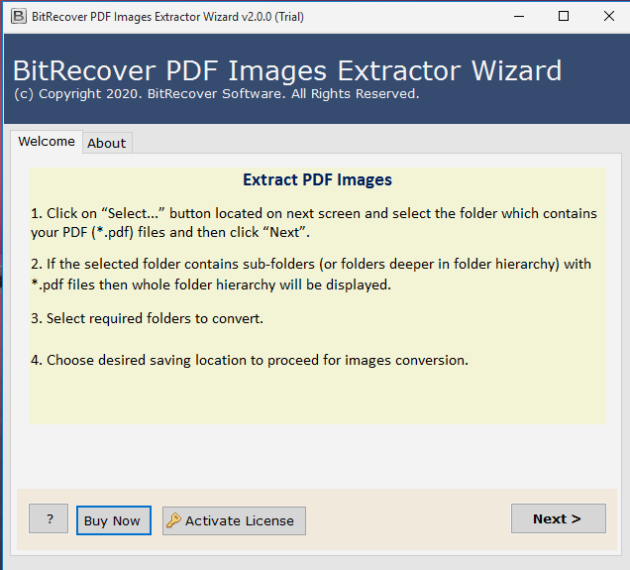
    Step1: Launch PDF image extraction software on Windows OS.

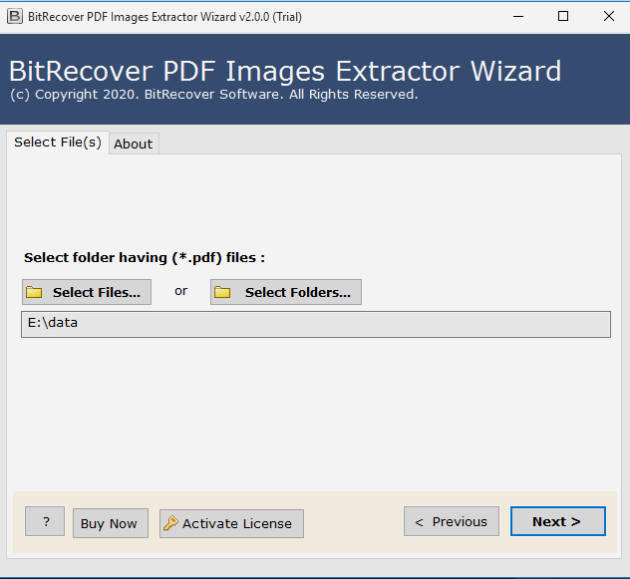
    Step2: Choose the required PDF file with the Select File and Select Folder option.

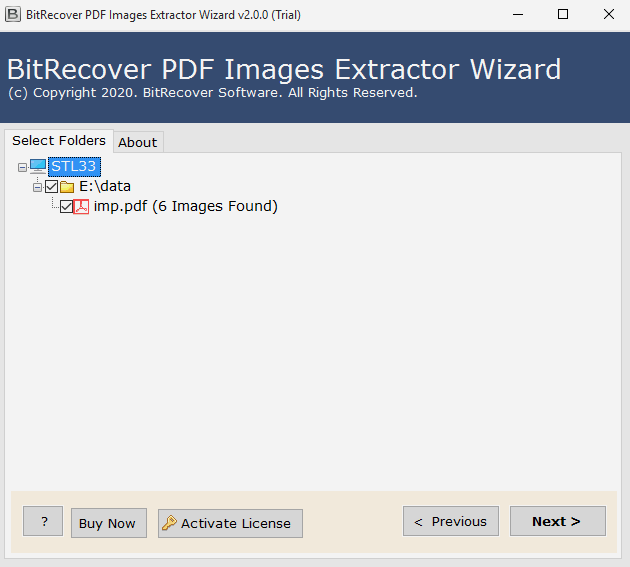
    Step3: Check the preview of all selected PDF files before extraction.

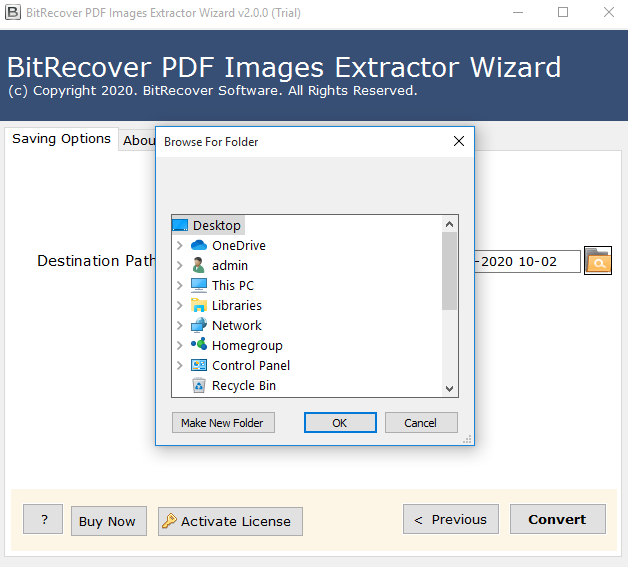
    Step4: Enter a target path where you want to save the extracted PDF images.

    Step5: Press on the Convert tab to start PDF image extraction processing.

    How To Extract All Images From PDF Documents ?

    Download, install and run the software on any Windows – compatible machine to extract multiple images from PDF files.
    Now, from the Select File and Select Folder option, choose the PDF files. With these options, you can choose single or multiple PDF files as per need.
    Then, check the preview of selected files before you start to extract graphics from PDF files.
    Thereafter, choose a location where you want to save the extracted PDF images.
    Lastly, press on the convert button to start to extract embedded images from PDF files. The software will show the live conversion progressive report of the entire process.
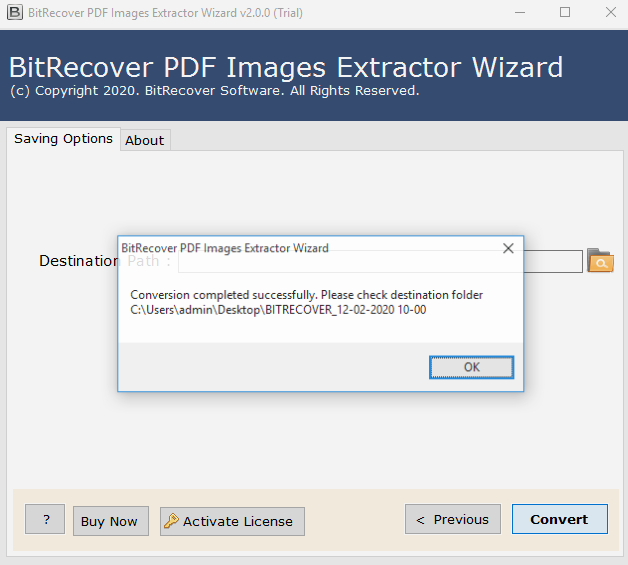
    In this way, one can easily extract all sorts of images from PDF files in a couple of mouse clicks.

    Highlighted Features Of PDF Image Extractor

    1. The software allows to batch extract multiple images from PDF files.

    2. It facilitates to extract all sort of images from PDF files like extract JPG from PDF, extract PNG from PDF, extract TIFF from PDF, extract Bitmap from PDF.

    3. The tool saves all extracted images from PDF files in a separate folder.

    4. It gives option to selectively choose files for PDF image extraction.

    5. This utility is an independent tool that does not require sn external application to extract all images from PDF.

    6. It provides double options to choose PDF files for extracting graphics from PDF files.

    7. The software provides a preview option which shows the number of images in the PDF files.

    8. The tool supports all the latest and earlier versions of Adobe PDF.

    Concluding Words

    The above write-up explains a complete solution to extract all images from PDF file. The mentioned solution of PDF Image Extractor is free from any errors. If you want to test the tool, you can try the demo version of this software. It permits to extract a few images from PDF documents. With this, you can evaluate the tool’s functioning and its working steps. For unlimited PDF images extraction, purchase the full pro version of the tool.

    B2B Leads Database
    Share. Facebook Twitter Pinterest LinkedIn Tumblr Email
    Soft2share.com
    • Website

    Related Posts

    The Future is Now: Predicting 2026 SMS Trends – The Rise of Voice SMS and Generative AI Integration

    21 April 2026

    How Smart Salesforce Integration Drives Faster Decisions and Better Results

    2 April 2026

    Top Startup News Trends Shaping the Future of Tech

    31 March 2026

    How to Build an E-Commerce Website from Scratch

    26 March 2026

    The Real “Hack” to Outranking Competitors: It’s Not What You Think

    26 March 2026

    How to Customize ServiceNow Without Killing Your 2026 Upgrades

    25 February 2026
    Leave A Reply

    You must be logged in to post a comment.


    Top Posts

    Best 12 Module Switch Plate Price Options for Stylish Interiors

    Top 7 Reasons to Choose the Best Dentist in Surat Today

    Beyond Funding: How Women Entrepreneurs in India Can Build Scalable, Investment-Ready Businesses

    The Real Backbone of Old Bridge Emergency Response

    How Education Marketing Agency In India Builds Visibility?

    Expert Tips from Pool Builders in Melbourne for Perfect Pool Construction

    Six Pack Liposuction for Women in Dubai

    Filter Solution: How Filtration Protects Patients During IV Therapy

    Our Picks

    Best 12 Module Switch Plate Price Options for Stylish Interiors

    23 April 2026

    Top 7 Reasons to Choose the Best Dentist in Surat Today

    23 April 2026

    Beyond Funding: How Women Entrepreneurs in India Can Build Scalable, Investment-Ready Businesses

    23 April 2026
    Popular Posts

    What Does a Salesforce CRM Consultant Actually Do?

    21 April 2026

    Slimpic Review: Proven Results or Scam You Must Avoid

    11 April 2026

    SAW Welding Machine for Heavy-Duty Industrial Applications

    8 April 2026
    About
    About

    Soft2share.com is a thriving hub that informs readers about the ever changing and volatile world of technology. It pledges to provide the most up-to-date business ideas, SEO strategies, digital marketing advice, and technological news.

    We're social, connect with us:

    Facebook X (Twitter) Instagram LinkedIn WhatsApp RSS
    • Home
    • About
    • Contact us
    • Advertise
    • Privacy Policy
    • Disclaimer
    • Terms & Conditions
    • Sitemap
    • Post Article
    © 2026 Soft2share.com. Designed by ThemeSphere.

    Type above and press Enter to search. Press Esc to cancel.