


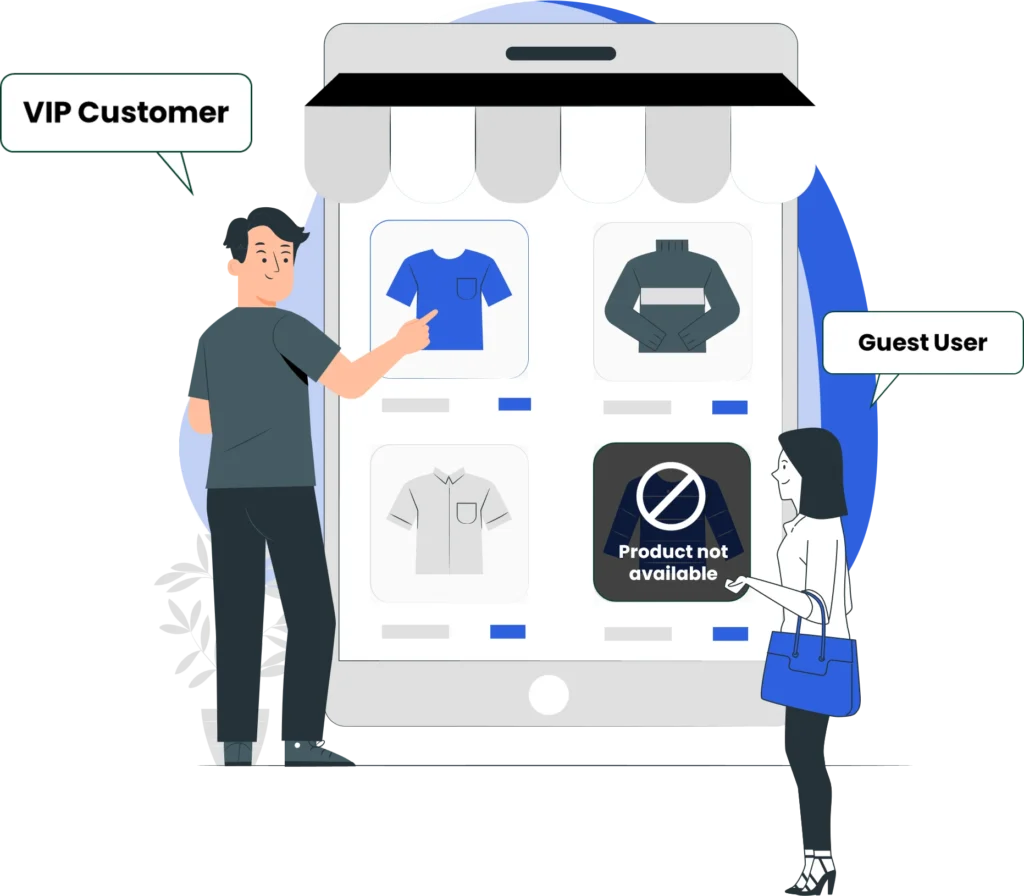
You’ve done everything right, hidden certain WooCommerce products, restricted visibility, and ensured only specific users can access them. Yet somehow, those “hidden” products are still showing up in search results. Frustrating, right?
This is a common issue store owners face when managing catalog visibility in WooCommerce. Whether you’re running a wholesale store, membership-based platform, or role-specific pricing model, product visibility control is critical. If not handled properly, it can lead to a poor user experience, confusion among customers, and even loss of trust.
In this guide, we’ll break down why hidden WooCommerce products still appear in search results, and more importantly, how to fix it effectively using the right approach, including tools like Products Visibility by User Roles for WooCommerce.
Why Hidden Products Still Appear in Search Results
Before jumping into solutions, you need to understand the root causes.
1. Default WooCommerce Limitations
WooCommerce’s built-in visibility settings are basic. Even if you set a product to “hidden,” it may:
- Still be indexed by search engines
- Appear in internal search results
- Be accessible via a direct URL
2. Search Indexing Issues
Search engines like Google may have already indexed your product pages. Even after hiding them, cached versions can still appear in search results.
3. Theme or Plugin Conflicts
Some themes or search plugins override WooCommerce visibility settings, causing hidden products to leak into search pages.
4. Improper Role-Based Restrictions
If you’re trying to hide products for specific users (e.g., guests or wholesalers), default WooCommerce doesn’t support advanced role-based visibility.
How to Fix the Issue (Step-by-Step)
1. Use Role-Based Visibility Instead of Default Settings
The most reliable solution is using a dedicated plugin like:
Product Visibility by User Roles
This allows you to:
- Control who can see specific products
- Restrict visibility by user roles
- Completely hide products from unauthorized users (including search results)
2. Ensure Products Are Excluded from Search
Even after applying restrictions, you must ensure products are:
- Excluded from catalog visibility
- Removed from search indexing within WooCommerce
Go to product settings:
- Set “Catalog visibility” to Hidden
- Disable visibility in search results
3. Use a More Advanced Plugin for Full Control
For deeper control and flexibility, you can use:
Products Visibility by User Roles For WooCommerce
This plugin provides enhanced features such as:
- Hiding products from specific roles completely
- Restricting access to product pages
- Redirecting unauthorized users
- Hiding products from shop, category, and search pages
Key Features of Products Visibility by User Roles For WooCommerce
Here’s what makes this plugin powerful:
1. Role-Based Product Visibility
Easily assign visibility rules based on:
- Guest users
- Logged-in users
- Wholesale customers
- Custom user roles
2. Hide Products from Search Results
Ensure restricted products:
- Do NOT appear in WooCommerce search
- Are invisible in category listings
- Are excluded from shop pages
3. Restrict Product Access
Even if someone has a direct link:
- Block access completely or
- Redirect them to another page (login page, homepage, etc.)
4. Category-Level Restrictions
Instead of hiding products one by one:
- Apply rules to entire categories
- Save time and manage large catalogs efficiently
5. Custom Messaging
Show tailored messages like:
- “Login to view this product”
- “Available for wholesale customers only”
6. Guest User Restrictions
Hide products from:
- Non-logged-in visitors
- First-time users
Perfect for private or members-only stores.
Best Practices to Prevent Visibility Issues
If you want to avoid this problem completely, follow these:
✔ Always Use Role-Based Plugins
Default WooCommerce settings are not enough for serious stores.
✔ Clear Cache Regularly
Caching plugins or server cache may still show hidden products.
✔ Update Sitemap
Remove hidden products from your XML sitemap to prevent indexing.
✔ Use Noindex for Restricted Pages
Add “noindex” tags to hidden product pages.
✔ Test with Different User Roles
Always check visibility by:
- Logging out
- Using test accounts
- Switching user roles
FAQs
1. Why are my hidden WooCommerce products still visible on Google?
Because search engines may have already indexed them. You need to remove them from the sitemap and add “noindex” tags.
2. Does WooCommerce fully hide products by default?
No. It only hides them from certain areas, but they can still appear in search or via direct links.
3. How do I completely hide products from specific users?
Use a plugin like Products Visibility by User Roles For WooCommerce to apply strict role-based restrictions.
4. Can I hide products from guest users only?
Yes. With the right plugin, you can restrict products to logged-in users only.
5. Will hiding products affect SEO?
Yes, if done incorrectly. You should:
- Remove them from sitemaps
- Add “noindex”
- Avoid broken links
6. Can users still access hidden products via direct URL?
With default WooCommerce, yes.
With a proper plugin, access can be blocked or redirected.
Conclusion
If hidden WooCommerce products are still appearing in search results, the issue isn’t just a minor glitch, it’s a limitation of default WooCommerce functionality.
Relying on basic visibility settings won’t give you the control you need, especially if you’re running a complex store with multiple customer segments.
The solution is straightforward:
- Use a dedicated role-based visibility plugin
- Properly configure search exclusions
- Manage indexing and access control
If you want full control without loopholes, implementing Product Visibility by User Roles is the most practical and scalable approach.
Stop guessing and start controlling exactly who sees what in your store.

